Customer Portal applications
New business customers can apply for a company account. Applications go through the approval process in the back office where they can be accepted, rejected or put on hold. If they're accepted, the business partner receives an invitation link to the Customer Portal, where they can set up their team and manage their account.
For more information on company self-registration, see user guide documentation. If provided options are too limited, you can customize an approval process by yourself.
Roles and policies
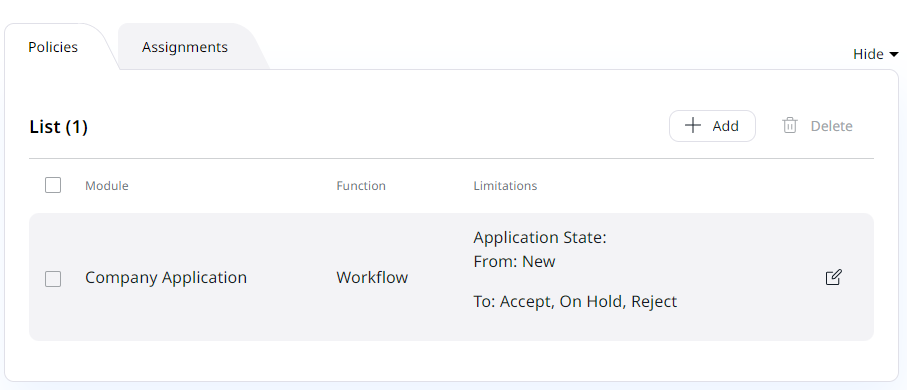
Any user can become application approver, as long as they have the Company Application/Workflow policy assigned to their role.
There, you can define between which states the user may move applications.
For example, the assistant can put new applications on hold, or reject them, and only the manager can accept them.
Customer Portal application configuration
Below, you can find possible configurations for Customer Portal applications.
Reasons for rejecting application
To change or add reasons for not accepting Corporate Portal application go to vendor/ibexa/corporate-account/src/bundle/Resources/config/default_settings.yaml.
1 2 3 4 | |
Timeout
Registration form locks for 5 minutes after unsuccessful registration, if the user, for example, tried to use an email address that already exists in a Customer Portal clients database.
To change that duration, go to config/packages/ibexa.yaml.
1 2 3 4 5 6 7 | |
Customization of an approval process
In this procedure, you add a new status to the approval process of business account application.
Add new status
First, under the ibexa.system.<scope>.corporate_accounts.application.states add a verify status to the configuration:
1 2 3 4 5 6 | |
Add form template
To be able to see the changes you need to add a new template templates/themes/admin/corporate_account/application/details.html.twig.
1 2 3 4 5 6 7 8 9 10 11 12 13 14 15 16 17 18 | |
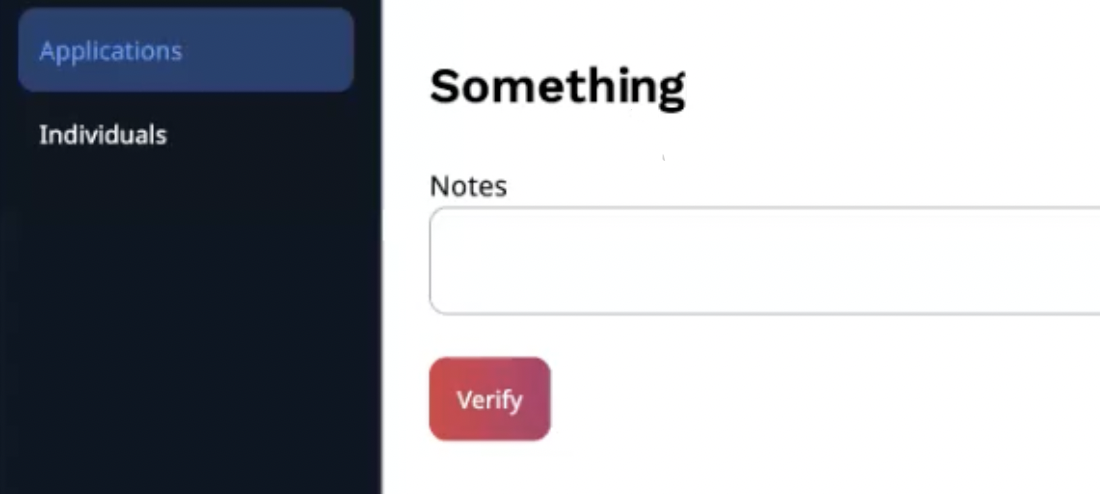
It overrides the default view and adds a Verify button to the review view. To check the progress, go to Members -> Applications. Select one application from the list and inspect application review view for a new button.